Converting a raster image to vector artwork can take two minutes in a browser or two days with a human vectorizer, and the gap between those options is exactly why so many logos come out wrong. This guide ranks five ways to convert image to vector in 2026, from free open-source software to a professional vector artwork conversion service, so you pick the right one for the file you actually need.
- DigitEMB's hand-vectorized service wins overall for print- and embroidery-ready files in 2026.
- Adobe Illustrator's Image Trace suits in-house teams who already own the software.
- Inkscape is the free way to convert image to vector for simple, single-color logos.
- Vector Magic and Vectorizer.ai automate the trace but still need manual cleanup on complex art.
- A clean vector trace is not the same file an embroidery machine needs to run.
Why this matters
A vector file scales from a business card to a billboard without turning into jagged pixels. A raster photo or a low-resolution logo can't do that — every enlargement blurs the edges further.
Embroidery machines, screen printers, and sign shops all need vector files with clean, separated paths, not a flattened JPEG. DigitEMB's vector artwork conversion service rebuilds those files by hand when an automated trace won't hold up under a needle or a blade.
Search interest in how to convert image to vector runs at roughly 880 searches a month, and most of that traffic comes from people trying to fix a logo before a print or embroidery deadline. The five options below solve different versions of that problem.
Best image to vector conversion tools in 2026: the verdict
Best overall: DigitEMB's vector artwork conversion service — hand-vectorized files built for print and embroidery output. Best for in-house design teams: Adobe Illustrator's Image Trace — full manual control inside software many studios already own. Best budget option: Inkscape — a free, open-source trace tool for simple, single-color logos.
What makes the best image to vector converter
- Path accuracy — clean curves instead of the jagged steps a raster edge leaves behind
- Color separation — each color becomes its own closed path, which matters for print and embroidery output
- File format support — SVG, EPS, AI, and PDF cover almost every print and digitizing workflow
- Editability — can a designer open the result and adjust individual nodes, or is it a locked trace
- Turnaround — automated tools finish in seconds; hand-vectorized work takes longer but catches detail an algorithm misses
- Fit for the end use — a vector meant for a T-shirt print needs different simplification than one meant for embroidery digitizing
Image to vector tools at a glance
| Tool | Best for | Standout feature | Key limitation |
|---|---|---|---|
| DigitEMB vector conversion | Print- and embroidery-ready artwork | Hand-vectorized by a person, not just auto-traced | Turnaround takes longer than an instant online trace |
| Adobe Illustrator (Image Trace) | In-house design teams | Full node-level editing after tracing | Requires an Illustrator license and trace skill |
| Vector Magic | Quick single-logo conversions | Automated trace with a real-time preview | Struggles with photos and complex gradients |
| Inkscape (Trace Bitmap) | Free, simple conversions | Open-source, no license cost | Manual cleanup needed on multi-color art |
| Vectorizer.ai | Batch or API-based conversion | Automated processing at volume | Output often needs a designer's cleanup pass |
1. DigitEMB: best image to vector conversion for print and embroidery-ready artwork
DigitEMB converts a logo, photo, or scanned artwork into scalable vector paths built for how the file will actually be used — printed on a sticker, embroidered on a patch, or applied to apparel. A person redraws the artwork instead of running it through an automatic tracer, which matters most when a logo has fine text, thin serifs, or gradients that auto-trace tools flatten into blobs.
DigitEMB pros:
- Vector output matches the intended production method instead of a generic trace
- Handles fine detail and small text that automated tracers round off
- One handoff covers vector artwork conversion, embroidery digitizing, and custom patches
DigitEMB cons:
- Turnaround runs longer than an instant browser trace since a person builds the paths
- Not built for a designer who wants to self-edit the trace mid-project
- Best suited to logos and brand marks, not complex photo-realistic art
Verdict: Buy for any logo heading to print or embroidery production in 2026.
2. Adobe Illustrator (Image Trace): best image to vector conversion for in-house design teams
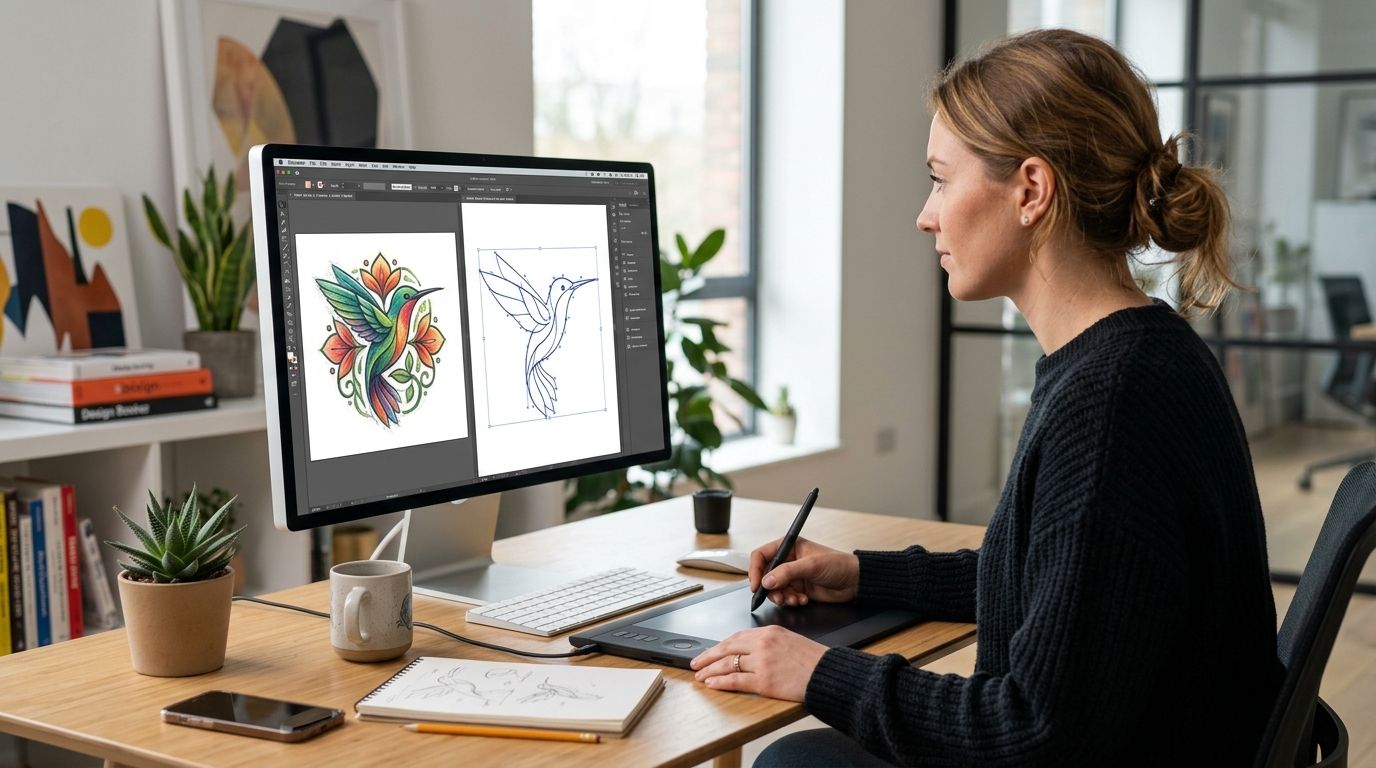
Illustrator's Image Trace panel turns a placed raster image into paths inside the same file a designer already uses for logo work. Because the trace lands as live paths, a designer can merge shapes, adjust anchor points, or swap colors without exporting to a second app.
Adobe Illustrator pros:
- Trace and edit happen in the same file, so cleanup is immediate
- Threshold and color sliders control how aggressively the trace simplifies the image
- Output exports cleanly to SVG, EPS, PDF, and AI for almost any downstream use
Adobe Illustrator cons:
- Requires a working license and enough trace experience to get a clean result
- Image Trace still struggles with photos and soft gradients, same as most auto-tracers
- No embroidery-specific output; a traced logo still needs separate digitizing for stitch files
Verdict: Buy if your team already runs Illustrator daily. Hold if the file needs to go straight to embroidery or print production without an in-house step.
3. Vector Magic: best image to vector conversion for quick, simple logo conversions
Vector Magic runs as a desktop app and online tool that auto-traces an uploaded image and shows a real-time preview before you download the result. It's built around speed: upload, adjust a few sliders, export.
Vector Magic pros:
- Faster than a manual trace for basic single- or two-color logos
- Live preview shows the result before you commit
- Works as a standalone tool without separate design software
Vector Magic cons:
- Struggles with photographs, gradients, and busy multi-color artwork
- Output often needs manual node cleanup before it's production-ready
- Not built for embroidery-specific output like stitch density or underlay
Verdict: Buy for a fast, simple logo trace. Skip it for anything with a gradient, a photo, or embroidery-bound artwork.
4. Inkscape (Trace Bitmap): best free image to vector conversion tool
Inkscape is free, open-source vector software with a built-in Trace Bitmap function that converts a raster image into paths. It covers the same core job as paid trace tools without a license cost.
Inkscape pros:
- No cost to use, and it runs on Windows, Mac, and Linux
- Trace Bitmap supports single-color, multi-color, and grayscale tracing modes
- Full path editing available in the same free app after the trace
Inkscape cons:
- Steeper learning curve than paid alternatives
- Multi-color traces on busy artwork need real manual cleanup
- No production-specific presets for print or embroidery workflows
Verdict: Buy if budget is the deciding factor and the source image is a simple logo. Hold for complex artwork that needs more automated intelligence than Trace Bitmap offers.
5. Vectorizer.ai: best image to vector conversion for batch or automated processing
Vectorizer.ai runs image-to-vector conversion through an automated engine built for volume — upload one file or connect through an API to process many at once.
Vectorizer.ai pros:
- API access makes converting large batches of images practical without manual work per file
- Handles a wider range of image types than most basic trace tools
- Output downloads directly in SVG format
Vectorizer.ai cons:
- Automated results on complex logos or photos usually need a designer's cleanup pass
- Batch processing prioritizes speed over the fine detail a hand-vectorized file gets
- No production-specific output for embroidery digitizing or patch manufacturing
Verdict: Buy for high-volume, low-complexity batch conversion. Skip it when a single logo needs to be embroidery- or print-ready without a second cleanup step.
How we ranked these
Each tool is scored against the criteria above: path accuracy, color separation, format support, editability, turnaround, and fit for the end use. A tool that traces fast but leaves gradients as muddy blobs loses points on accuracy even if it wins on speed. A service that takes longer but delivers a file ready for embroidery digitizing or print production wins on fit for the end use.
Which image to vector tool should you choose in 2026?
If the file is heading to a patch, an embroidered shirt, or a printed sticker, DigitEMB's vector artwork conversion service is the safer default in 2026 — a person checks the detail an algorithm skips. If your team already owns Illustrator and just needs a quick internal trace, use Image Trace and budget time for cleanup. If the budget is zero and the logo is simple, Inkscape's Trace Bitmap gets the job done without a login or a subscription.
Need a production-ready vector file?
Get a vector conversion quote for print or embroidery use.
FAQ
What's the best way to convert image to vector in 2026?
For a logo heading to print or embroidery, a hand-vectorized service like DigitEMB gives the cleanest result in 2026. For a quick internal trace, Adobe Illustrator's Image Trace or Inkscape's Trace Bitmap handle simple logos without a service turnaround.
Is Adobe Illustrator good for converting images to vector?
Yes, Illustrator's Image Trace panel converts a raster image into editable paths inside the same file. It works best on simple logos and struggles with photos or soft gradients, same as most automated tracers.
Can I convert a JPEG to vector for free?
Yes, Inkscape's Trace Bitmap function converts a JPEG to vector at no cost. It handles single-color and multi-color logos but needs manual cleanup on busy or photo-realistic artwork.
Do I need a vector file for embroidery digitizing?
A vector file is not required to start embroidery digitizing, but a clean vector logo gives the digitizer a more accurate reference for stitch paths. Digitizing itself still creates a separate stitch file, not just a traced vector.
What's the difference between vector conversion and embroidery digitizing?
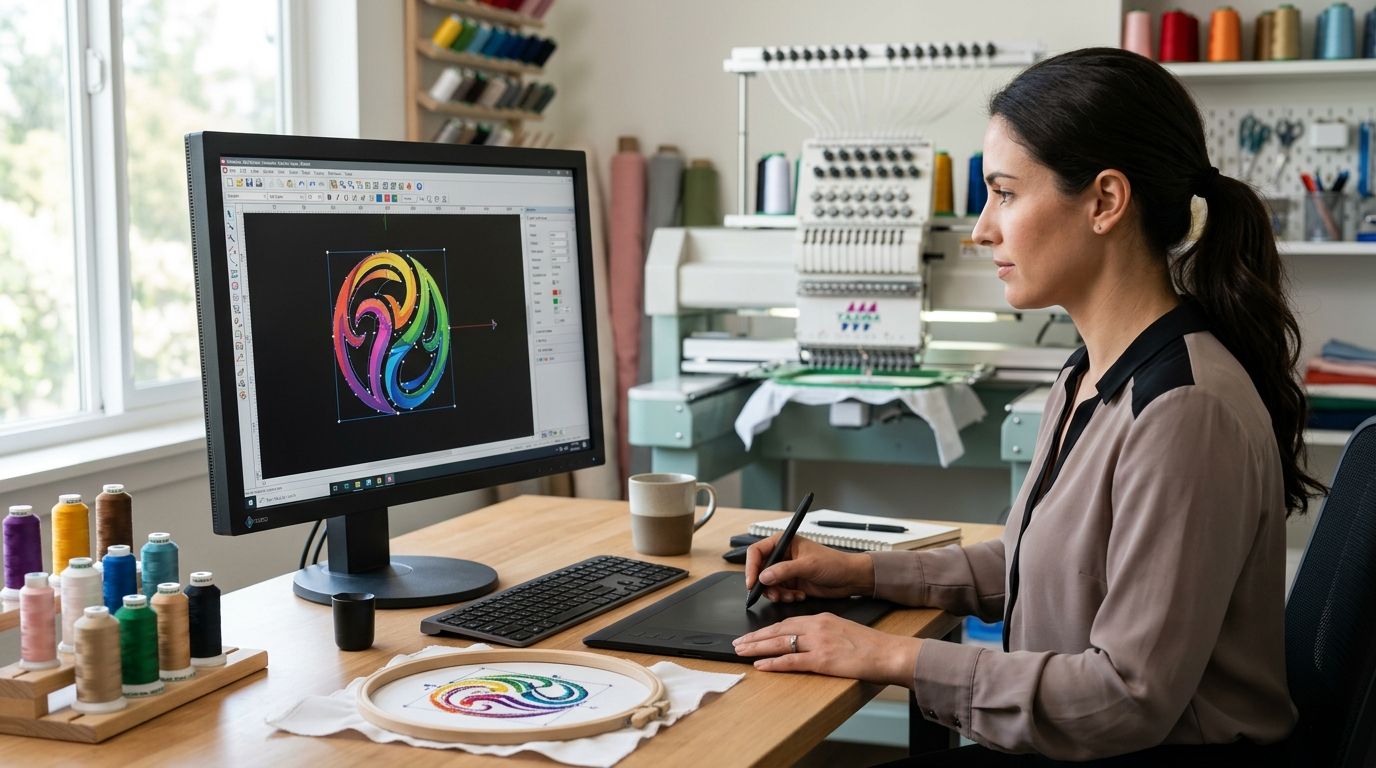
Vector conversion recreates an image as scalable paths for print or design use. Embroidery digitizing turns artwork into stitch instructions a machine reads, including stitch direction and underlay, which a plain vector trace does not include.
How long does professional vector conversion take?
A hand-vectorized service takes longer than an automated online trace because a person redraws the artwork instead of running an algorithm. Exact turnaround depends on the complexity of the source image.
What file format should a converted vector image use?
SVG works for web and general design use, while EPS, AI, and PDF cover most print and embroidery digitizing workflows. Check which format the printer, embroiderer, or software requires before exporting.
Can automated tools handle complex logos?
Automated tracers like Vector Magic and Vectorizer.ai handle simple logos well but usually leave gradients, fine text, and photo-realistic detail rough. Complex artwork generally needs a manual cleanup pass or a hand-vectorized service.
One last thing
A clean vector trace and an embroidery-ready vector aren't the same file. Embroidery digitizing needs stitch-specific separations — closed shapes with defined stitch direction and underlay — not just smooth paths, so a logo that traces perfectly in Illustrator can still need a separate digitizing pass before it runs on a machine in 2026.